Choose an IPTV player for Fire TV in 2027: model and publisher checks
Find a player offered for your device and confirm its role before adding service credentials.
 Apps & setupYour Fire TV, ready.
Your next step.
Try it, or keep watching.
To choose an IPTV player for Fire TV in 2027, start with the exact Fire TV model and the app offered for it. Check the publisher, current download source, supported account format and any separate app charge. Then test the player with the service details supplied for your account.
Identify the device before following a tutorial
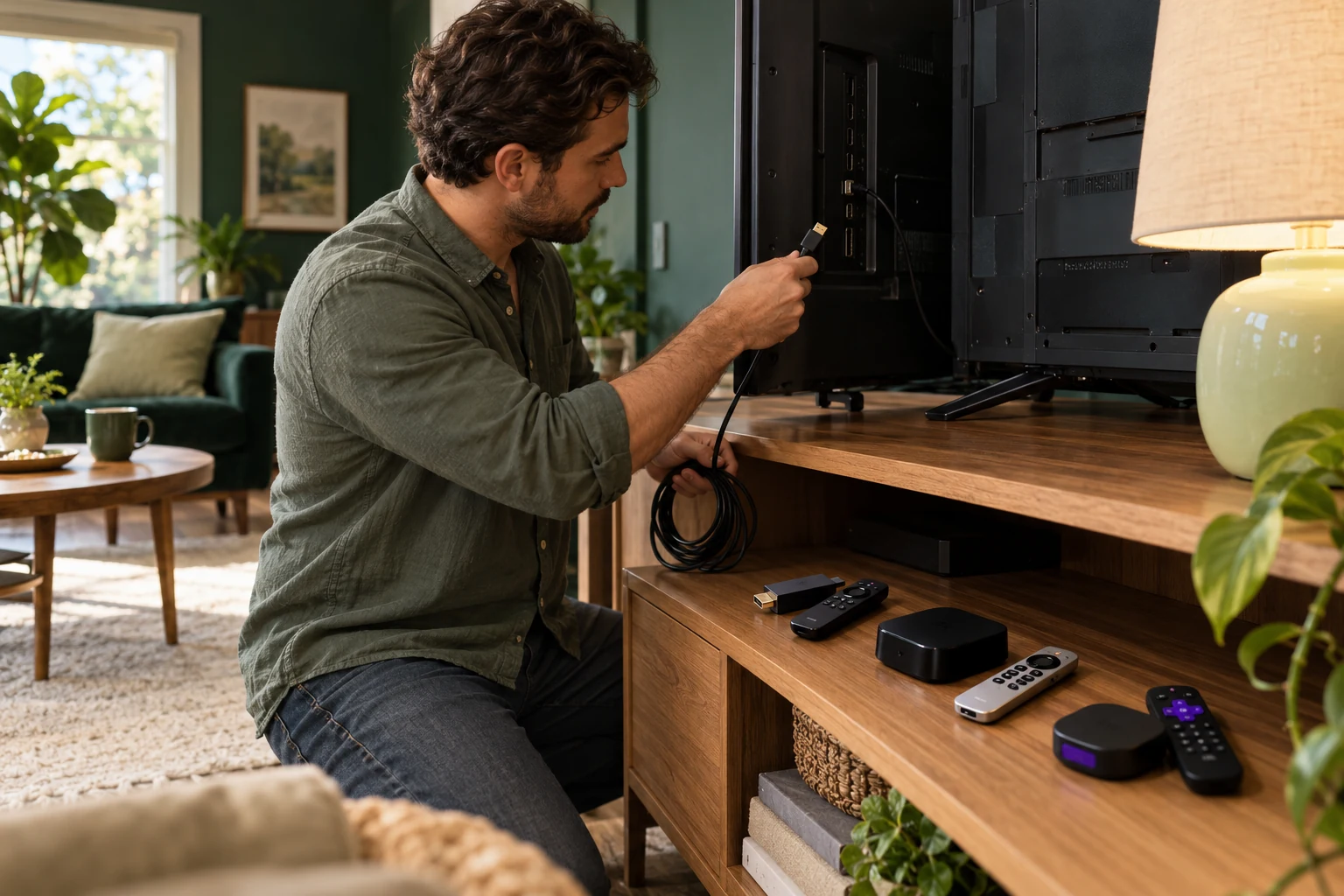
Record the model and software version from the device's information or official support material. Distinguish a Fire TV streaming device from a television using another platform. Keep the name and version of the player beside it when asking for help.
Use the Fire TV setup guide as your starting point. A tutorial for a different generation may help you understand the task, but current availability on your own device is the deciding check.
Use the documented download route
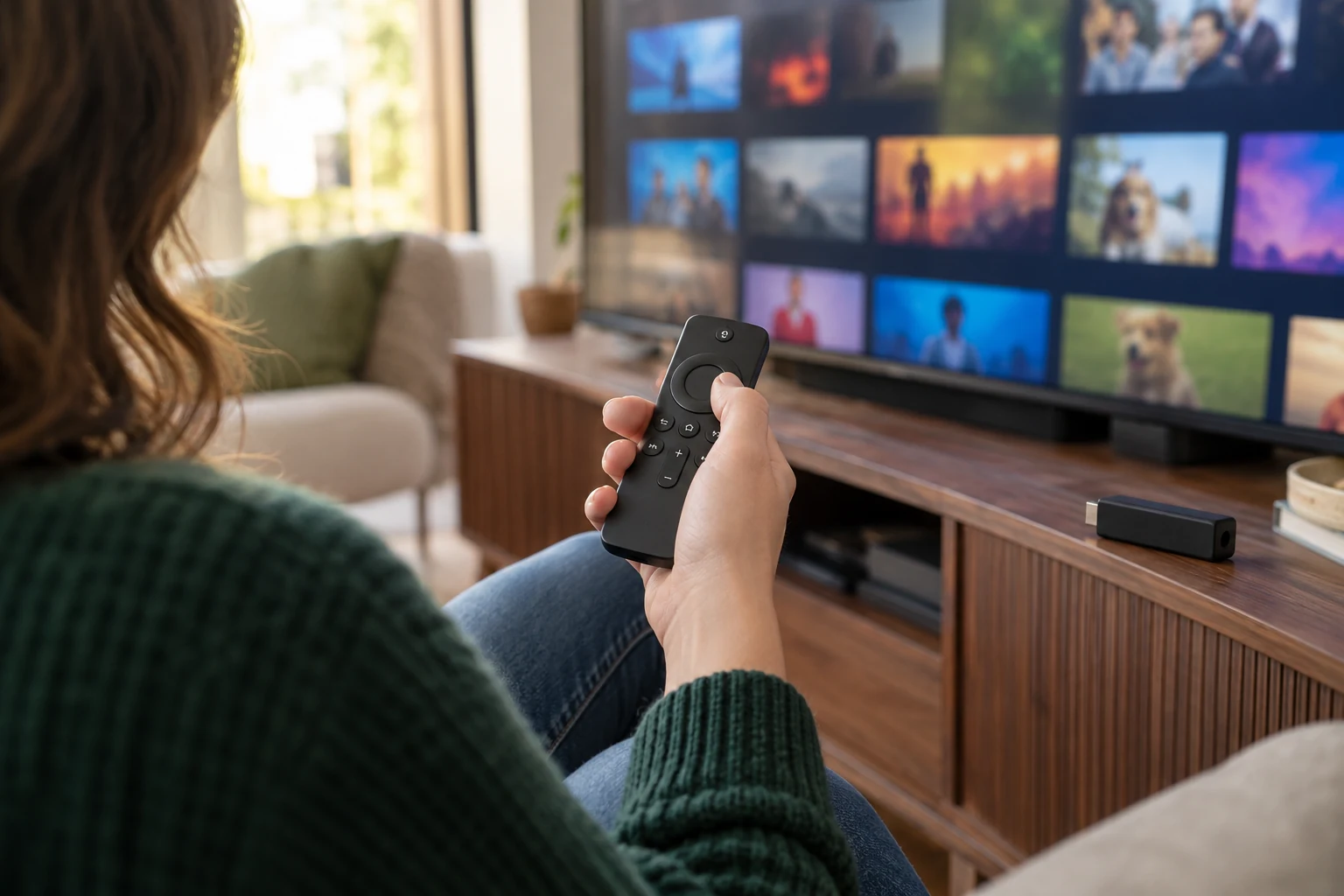
Amazon's official Fire TV instructions say to find an app through Find or the Alexa voice button, select its result and choose Get or the purchase icon. Check the listing and publisher before accepting a charge. Follow the instructions actually shown for your model.
If the player is not offered, ask the publisher or device support about that model. Do not assume an Android installation package or a guide for another Fire TV can be used. Choose from options confirmed for the device rather than turning a missing listing into a guess.
Put the guide to use.
Prepare the confirmed Fire TV app before evaluating service access in a trial.
Compare the player against your tasks
| Check | What you need to know |
|---|---|
| Account entry | Which supplied format the app accepts. |
| Remote use | How to return to the guide and find favourites. |
| Guide | How the documented guide source is supplied and refreshed. |
| Cost | What the free/paid edition includes and how it is charged. |
The premium-player checklist separates those charges from service access. Confirm any recording or replay requirement with both the app and service before purchasing around it.
Keep a short app record with the listing name, publisher, version and purchase terms. Add the login option confirmed for your account and a note about the remote tasks you tried. If you later change players, keep the two results separate. This helps you ask a publisher-specific question and avoids confusing an app purchase or update with a change to the underlying service connection.
Test one account and one screen first
Request the current 24-hour trial with the exact Fire TV model in the device details. It needs no card and is prepared by a person within four hours. Match the supplied credentials to the confirmed login option; ask Help if the fields differ.
One connection permits one concurrent screen. Check the guide, sound and remote on the intended TV, then compare the appropriate plan. Keep the app and account names in your notes so later support starts with the setup you actually use.