IPTV buffering checks for 2027: ten ways to narrow the problem
Change one thing at a time and turn an interruption into a useful symptom report.
 10 buffering checksKeep the picture moving.
Your next step.
Try it, or keep watching.
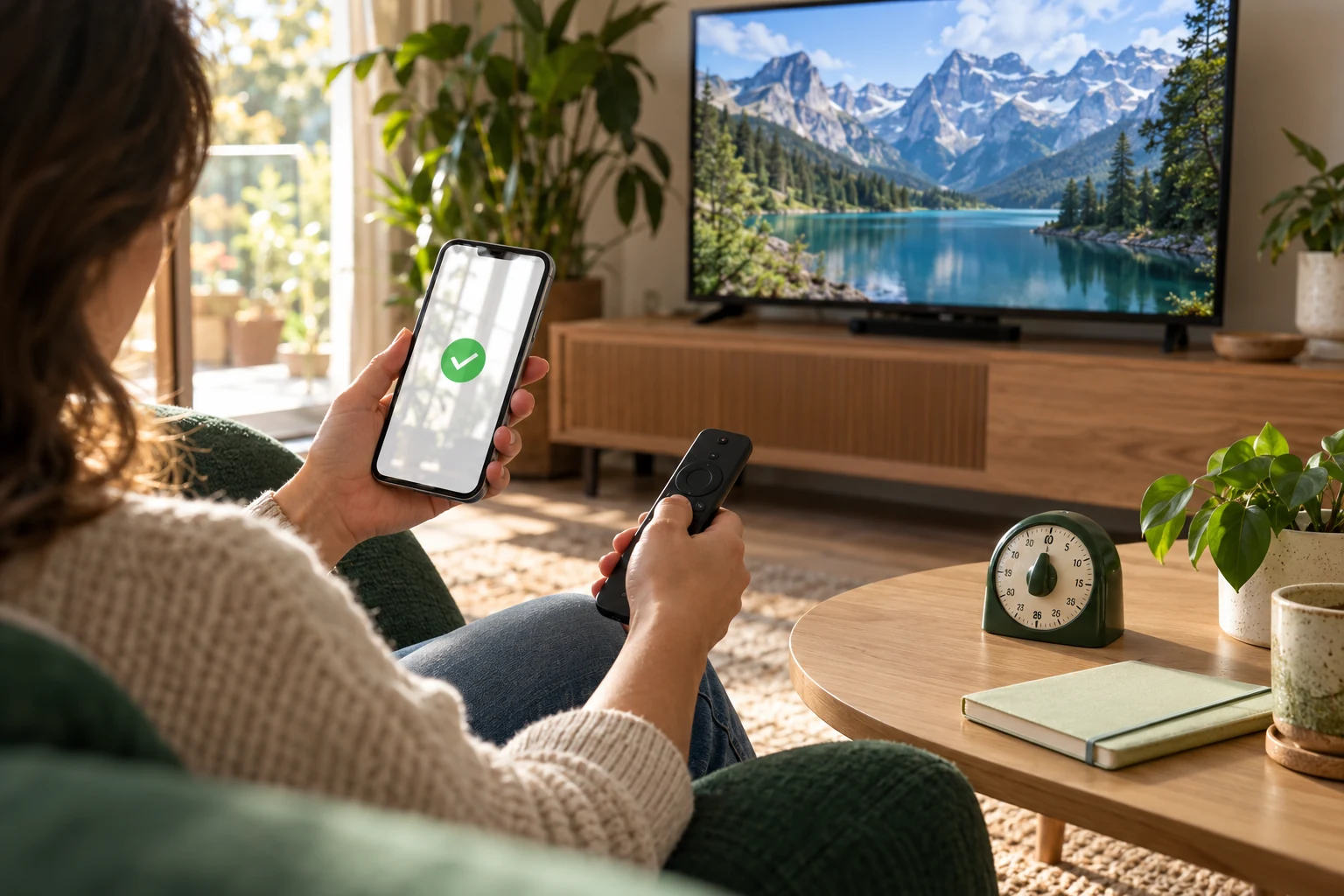
When IPTV buffers in 2027, identify the pattern before changing settings. Check whether the issue affects one stream, one player or the whole device, then make one documented change at a time. The ten checks below help you gather useful evidence; the right next action depends on what you observe.
1. Record the exact symptom
Note the device, player, stream, time and visible message. Distinguish repeated pauses from a login failure or an empty guide. Use Help for the matching issue rather than applying every playback step.
2. Confirm the selected network
Check that the device is on the intended home connection. On Google TV, Google documents the Network & Internet check. Follow your manufacturer's instructions on other equipment.
3. Compare one and several streams
Note whether the symptom affects one programme or several. Ask support about a specific failed feed; avoid assuming a device-wide cause from a single stream.
4. Record connection differences
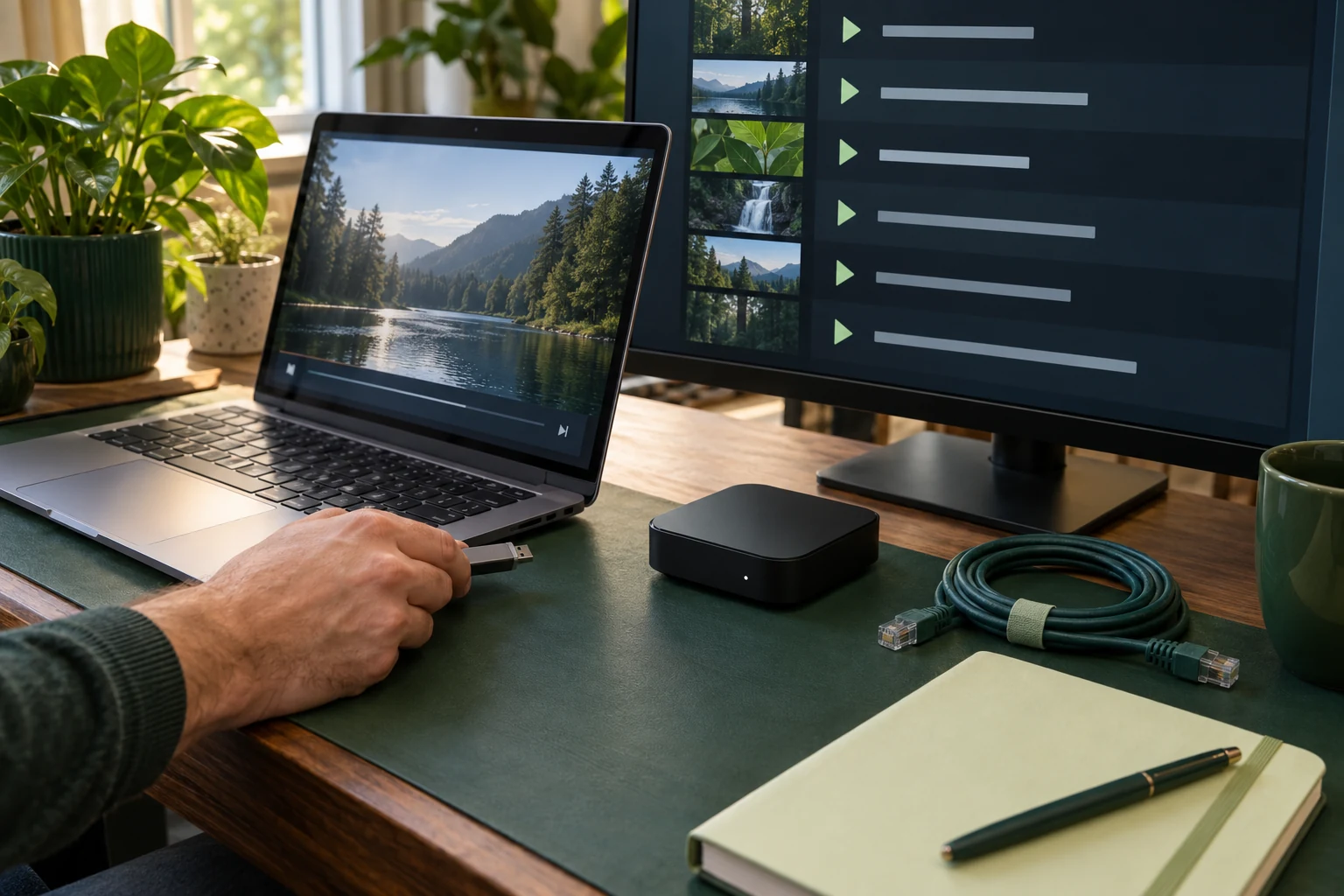
Where supported, compare Ethernet with Wi-Fi on the same device. Record the result without treating it as proof of a specific network policy or cause.
5. Consider router placement
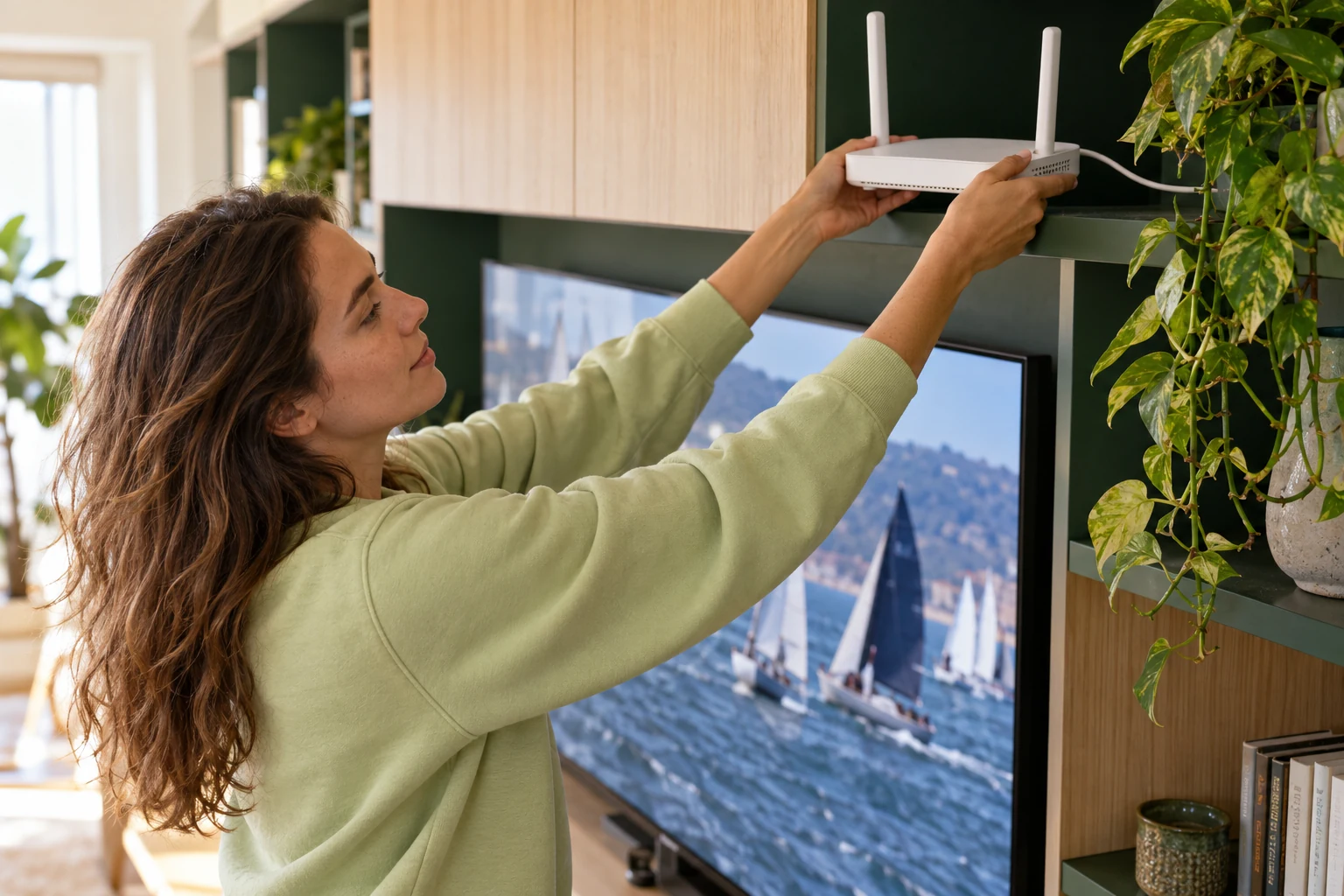
Google's network guidance identifies distance and obstacles as Wi-Fi factors. Check placement using the router manufacturer's advice.
Put the guide to use.
Trial the intended network before choosing a term; check expiry before treating an existing line as a playback fault.
6. Note other household traffic
Record whether a large download or another high-bandwidth activity coincides with the interruption. Repeat the observation when that activity is paused, if practical.
7. Check the account and concurrent screens
Verify expiry and close an unintended second stream. One 8K TV connection is one simultaneous screen. Use renewal for an expired existing line.
8. Check supported updates
Use the device and app publisher's current update instructions. Google TV's guide includes system updates. Keep the version in your notes.
9. Restart using the device instructions
Google documents a system restart for Google TV. Follow the equivalent official instructions for your model. Preserve account details; a factory reset erases data and should not be the first experiment.
Keep a before-and-after note for the check you choose. Record what changed and whether you repeated the same viewing task. If several changes were made together, say so when asking for help. This is especially useful for an intermittent issue: “worked once after several changes” is a different observation from a repeatable comparison on the same device. Let the evidence guide the next check instead of repeating the entire list.
10. Escalate the pattern you found
Send the time, player version, affected streams and comparisons to support. If other internet apps also fail, bring that evidence to the ISP. For a new setup, use the 24-hour trial on the intended connection before comparing plans.