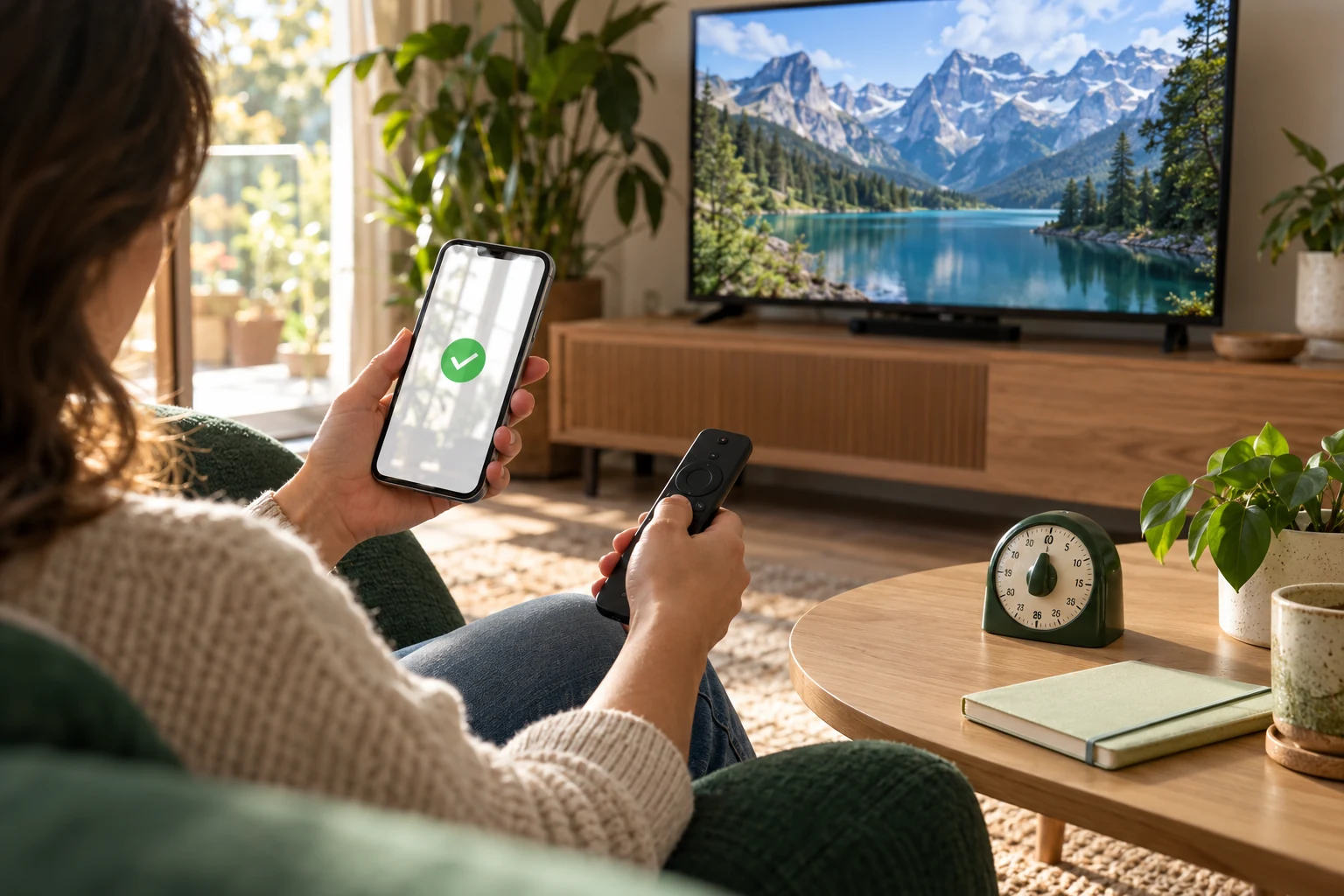
IPTV Buffering in 2027: A Practical Home-Network Checklist
Trace interruptions with one change at a time. Compare the same viewing task, check the television's connection and record when the problem appears.
 Buffering & freezingLess waiting. More watching.
Your next step.
Try it, or keep watching.
For IPTV buffering, begin with the television's actual connection and a repeatable viewing task. Note what is playing, when it pauses and whether the issue affects one programme or the whole setup. Then change one condition at a time. This 2027 checklist helps you separate observations from guesses and choose the right person to ask for help.
If you cannot sign in or load a channel list, use the login, playlist and EPG triage guide first. This page focuses on interruptions after playback has started.
Describe the pattern before changing settings
| Observation | Useful comparison | What to note |
|---|---|---|
| One channel pauses | Another channel on the same device | Channel, programme and local time |
| Several channels pause | The device's network check and another permitted device | Which devices are affected |
| The problem appears in the evening | A similar session with ordinary household use recorded | Active screens, large downloads and connection type |
| One room behaves differently | The same task nearer the router, where practical | Room, device and the single changed condition |
Keep a short note of the original state before each comparison. If you change the player, network and programme together, it becomes harder to explain which change mattered. A clear observation is useful even when it does not identify the cause immediately.
Put the guide to use.
Use your actual evening viewing conditions during the trial. For an established account, renew separately from diagnosing a network issue.
Check the Wi-Fi path at the screen
Google's home-network guide identifies distance, physical barriers and competing household bandwidth as factors in Wi-Fi performance. Its documented checks include device placement, a network restart and upstream equipment checks.
- Where practical, compare the same viewing task closer to the router or with fewer obstructions.
- Record large downloads and other active streams; compare with unused activity paused.
- Follow your router manufacturer's restart instructions, then repeat the same task.
- If expected network performance remains poor, ask the ISP about the incoming service and upstream equipment.
Use the result to narrow the next question. For example, tell support that the same device behaved differently in two positions, rather than describing the entire service as slow.
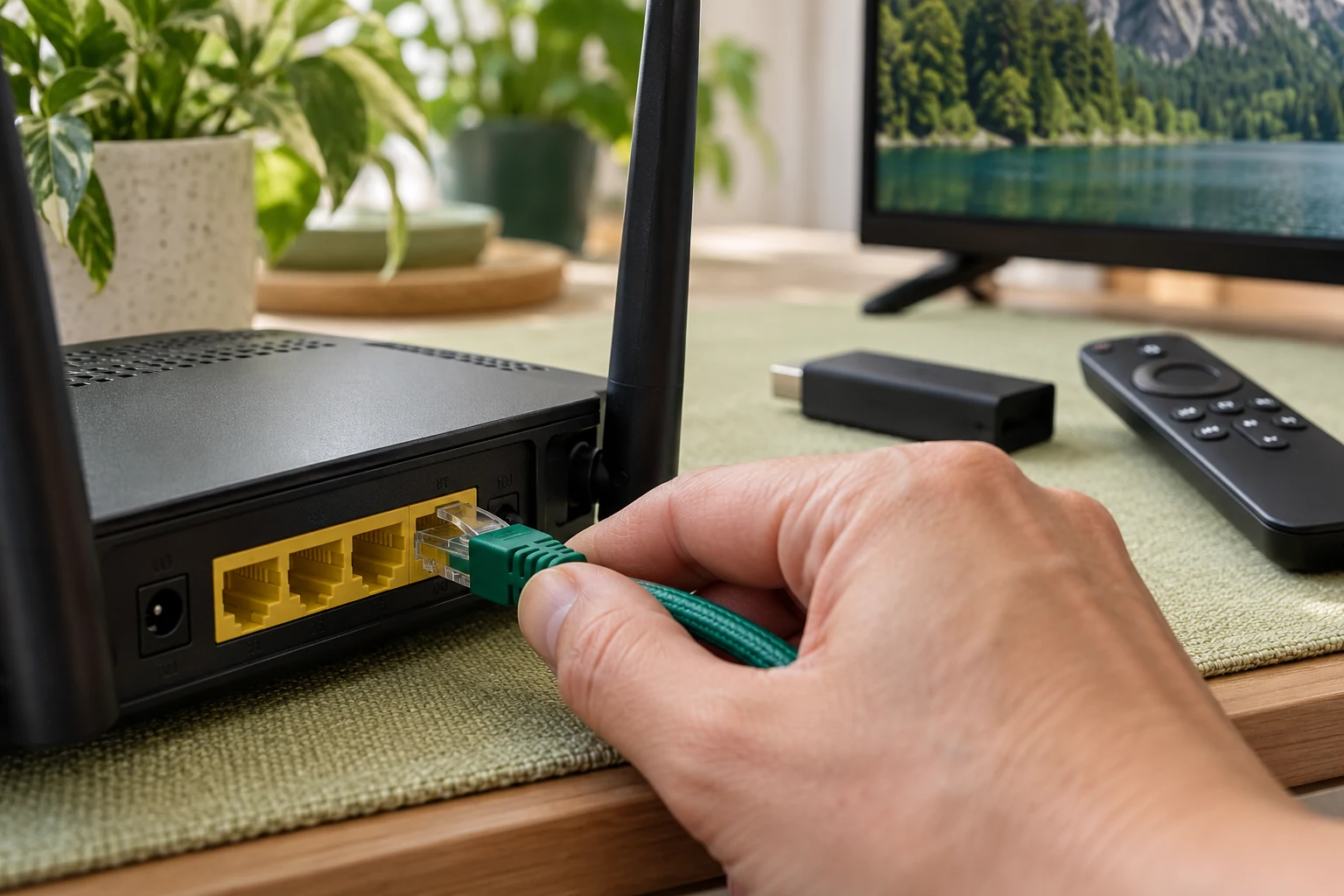
Compare a supported wired connection
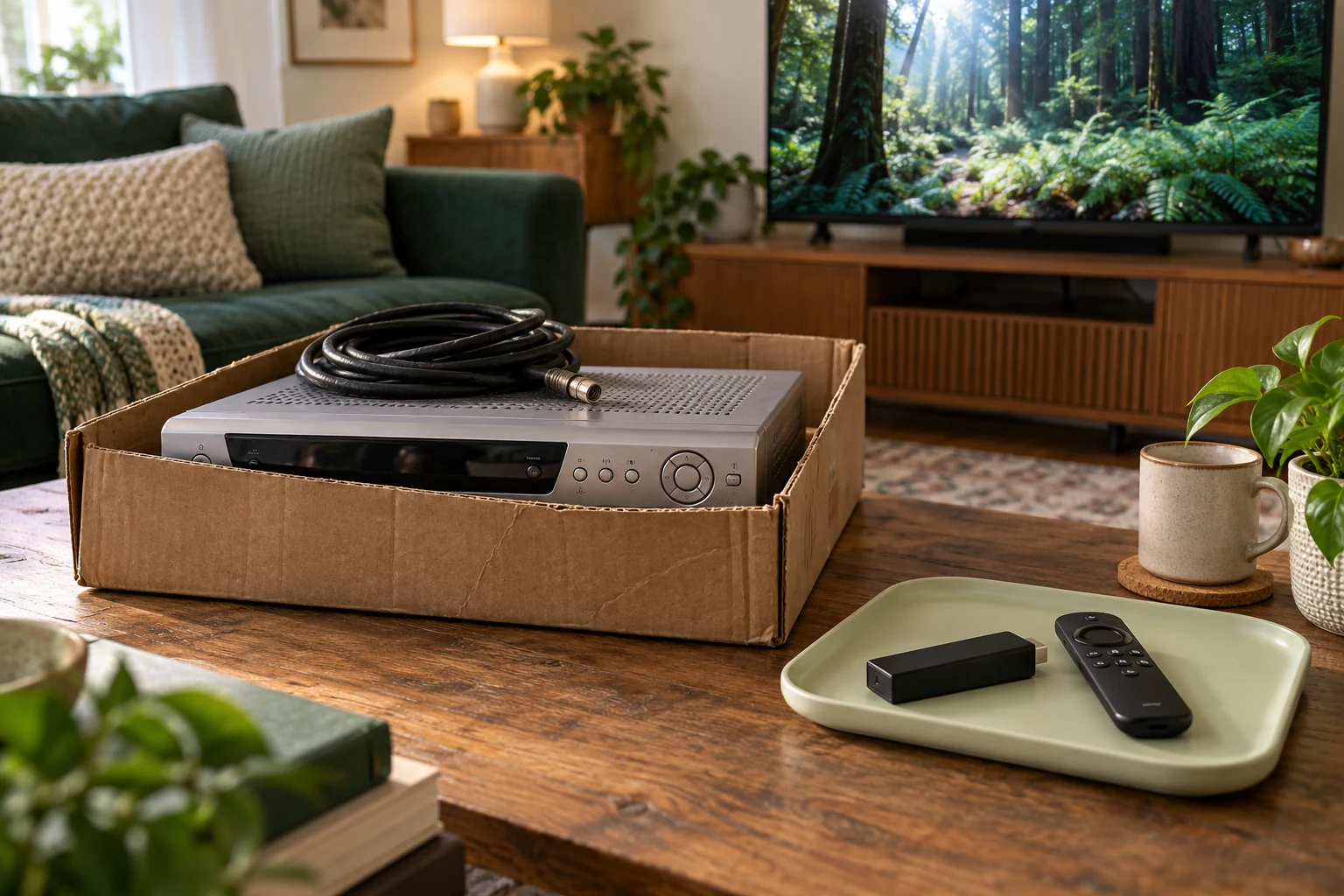
If your device supports Ethernet, use its official instructions for a wired comparison. Roku's connection guide explains its Wi-Fi and model-dependent wired options. Check the exact device before buying an adapter, then keep the programme and other settings the same during your comparison.
For a Roku device, also record the result of its documented network connection check. For another platform, use that manufacturer's equivalent instructions. A number from another device is a useful note, but the television's own viewing result is still part of the report.
Send a playback report that can be acted on
Include the device model, player and version, connection type, affected channel, local time and one comparison result. Say whether the issue happens on one screen or several. Use Help with that summary, and keep private account details out of public posts.
When checking several devices, stay within the account's simultaneous-connection allowance. Test devices in sequence if that is the allowance you have. Installed apps and concurrent viewing are different entries in your notes.
Buffering questions
Is there one speed number that settles every problem?
Ask about the actual feed, then assess playback on your device. Use the network pattern and comparisons above instead of choosing an upgrade from a speed number alone.
How should I use a trial?
Use the current 24-hour trial during an ordinary viewing period, with the screen and connection you intend to keep. Allow for the stated human preparation window.
Does renewal require a new setup?
Current account renewal keeps the existing credentials and player settings. Keep network diagnosis and the account's access period as separate questions.