IPTV Login, Playlist and EPG Troubleshooting: Your 2027 Triage Guide
Find where the viewing process stops before changing settings. Separate account login, playlist loading, programme-guide data and playback problems.
 Login · EPG · playbackLet’s get it playing.
Your next step.
Try it, or keep watching.
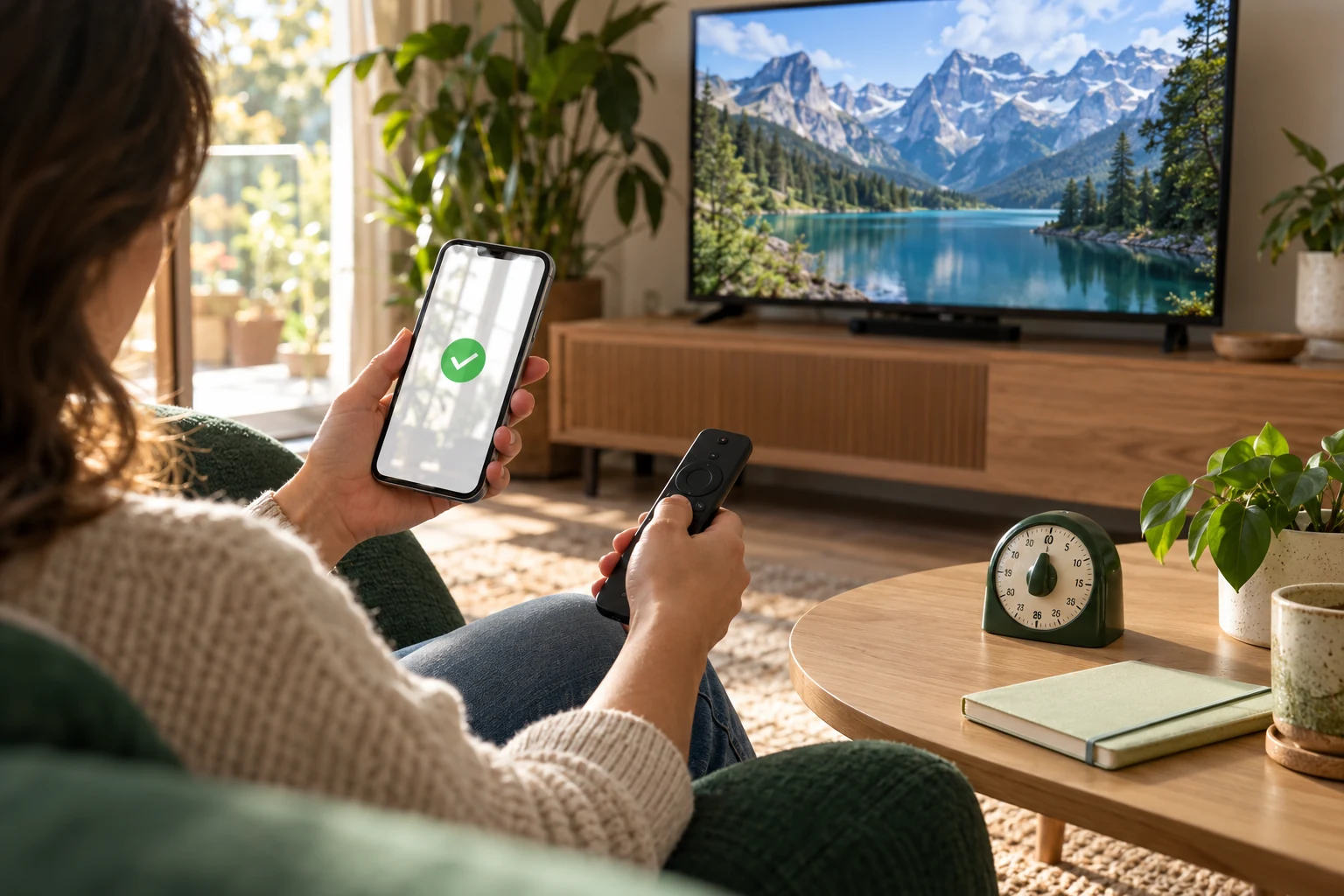
Start IPTV troubleshooting by identifying the first step that fails: account login, playlist loading, guide data or playback. Those are different checkpoints. Record the exact message and where it appears before changing several settings at once. This 2027 triage guide helps you choose a focused next step and send support a useful description.
For installation from the beginning, use the IPTV setup guide. If the app opens and your main problem is repeated pauses, go to the network and buffering checks.
Choose the matching symptom
| Where it stops | What to compare | Useful support detail |
|---|---|---|
| Sign-in screen | The account type and details supplied in your access message | Exact error and whether this is a first setup or renewal |
| No channel list | The selected playlist or connection method | App name, connection method and when the list last worked |
| Channels play but guide is empty | The selected guide source and affected channels | Whether every guide row or only some rows are empty |
| Picture will not play | Another known channel and the device's network check | Channel, time, error and result on another permitted device |
Make one comparison at a time. If a change improves the result, note it before proceeding. Keep your working settings available; a complete reinstall is a much larger change than correcting one field.
Put the guide to use.
If access has expired, use the renewal form for the existing account. If you are checking a first setup, use the trial and keep your device details handy.
Check which account the screen expects
Compare the screen's requested fields with the original access message. A player account and your television-service account can serve different purposes. The TiviMate developer listing, for example, distinguishes paid player features from content access. Use the credentials intended for the service connection when adding that connection.
Check the supplied username, password and server or portal address against what was entered, including accidental spaces. If you no longer have the access message, ask support to identify the existing connection. Keep full passwords and complete private playlist links out of public screenshots or forum posts.
If the account needs more time, use Renew your account for that connection. Current 8K TV renewal guidance keeps its credentials and player settings. A renewal does not require you to create a second player profile as a troubleshooting experiment.
Treat playlist and guide information separately
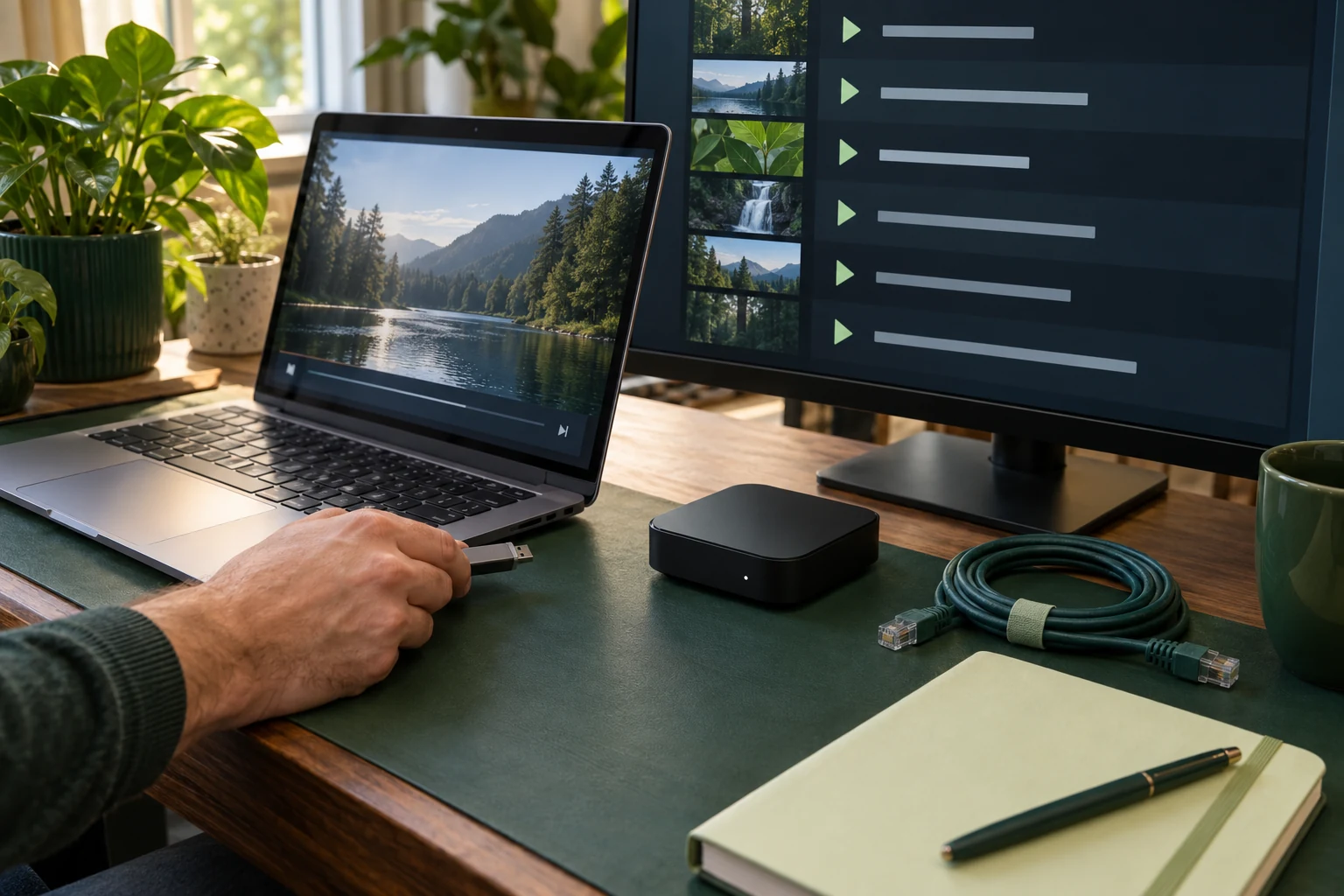
A useful example is Kodi's IPTV Simple Client documentation: its live-stream source uses M3U, while guide data uses XMLTV. That distinction explains why a channel list and its programme information are worth checking separately.
In your chosen player, compare the connection method with the one supplied by support. If live channels already play, report the missing guide rows as a guide issue rather than replacing all working login details. For a fuller explanation, read the EPG setup guide.
Check playback without losing the diagnosis
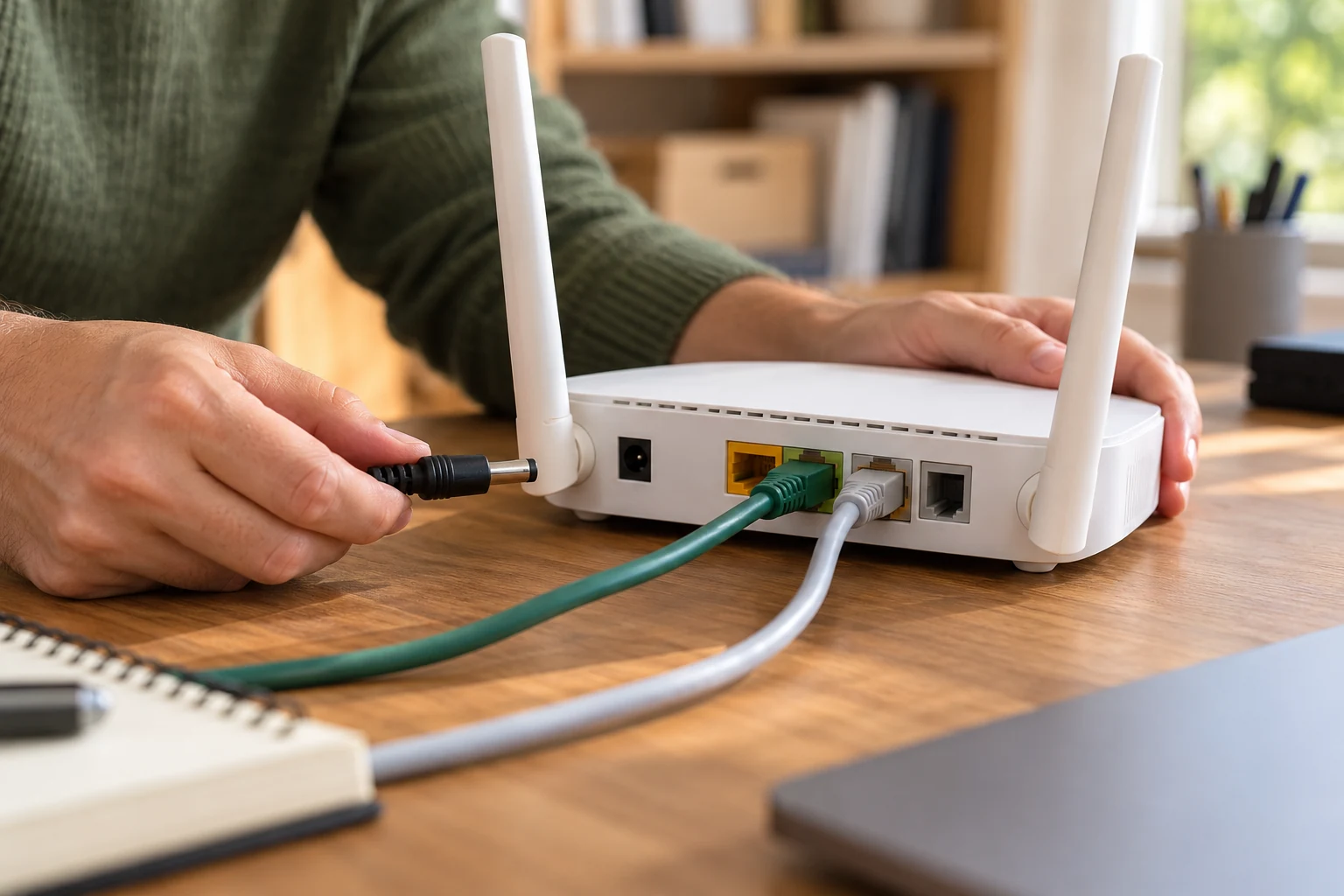
Write down whether one channel, several channels or the whole app is affected. Run the device's documented network check; Roku explains its connection check here. Pass that result to support with the player and device model. It is more useful than changing unrelated options and then trying to remember the original problem.
Prepare a short support message
- Device model, app name and version.
- First setup, previously working account or renewal.
- Exact error text, without private login details.
- Affected channel or guide row and the local time it happened.
- The single comparison you tried and its result.
Use Help with that summary. For a new account, the current free-trial form is the intended first step; allow for the stated human preparation window before treating an undelivered login as a device fault.
Common triage questions
Should I clear data or reinstall first?
Identify the failed checkpoint and keep the access information first. Follow the chosen app's documented procedure when support has narrowed the issue to that app.
What if another device works?
Include that comparison in your support message, together with both device and app versions. Test within your purchased simultaneous-connection allowance.