Smart-TV IPTV setup for 2027: Samsung, LG and Google TV checks
Start with the operating system and exact model instead of assuming every smart TV uses the same apps.
 Samsung · LG · SonyA smarter TV setup.
Your next step.
Try it, or keep watching.
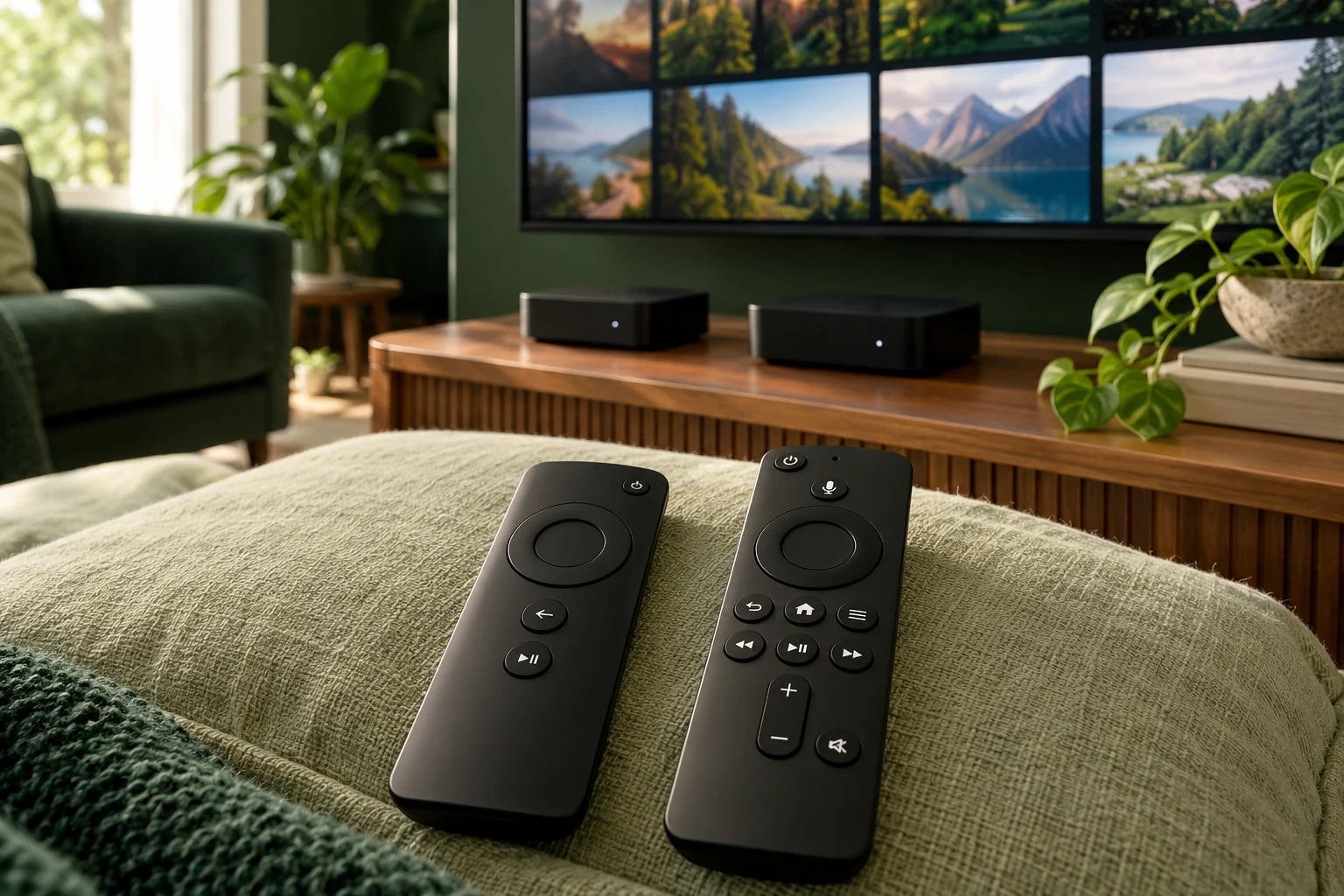
To prepare IPTV on a smart TV for 2027, identify the operating system and exact model before choosing a player. Samsung Tizen, LG webOS and Google TV use their own app environments. Check the app offered on your actual television, its accepted login format and any separate charge before purchasing access.
Identify the platform on the screen you use
Write down the model code and software version from the television's own information page or manual. If a streaming box is connected, record its details separately. A TV brand name alone is not enough to choose an app or follow a menu path from another model.
| Platform | First official check |
|---|---|
| Samsung | Search the TV's offered apps and check Samsung's model/region guidance. |
| LG webOS | Check app availability for the model and actual services country. |
| Google TV | Find the offered app through Search or Apps. |
Use the manufacturer's current instructions
Samsung's installation guide notes that features vary by model, software and region. LG's current support guide also identifies model and regional app availability. Google's installation instructions apply to Google TV. Use the source for your platform rather than trying to reproduce another TV's store.
Our smart-TV guide is the general starting point; the Samsung-specific checklist goes deeper into that model-and-app decision.
Put the guide to use.
Identify the exact smart TV and player, then evaluate them together in a trial.
Confirm the player before adding credentials
Check the exact name and publisher. Read which account formats the current app supports, and compare that with the details the service supplies. Ask for help if the field names do not match. Do not enter account details into an app solely because its icon resembles a screenshot from a tutorial.
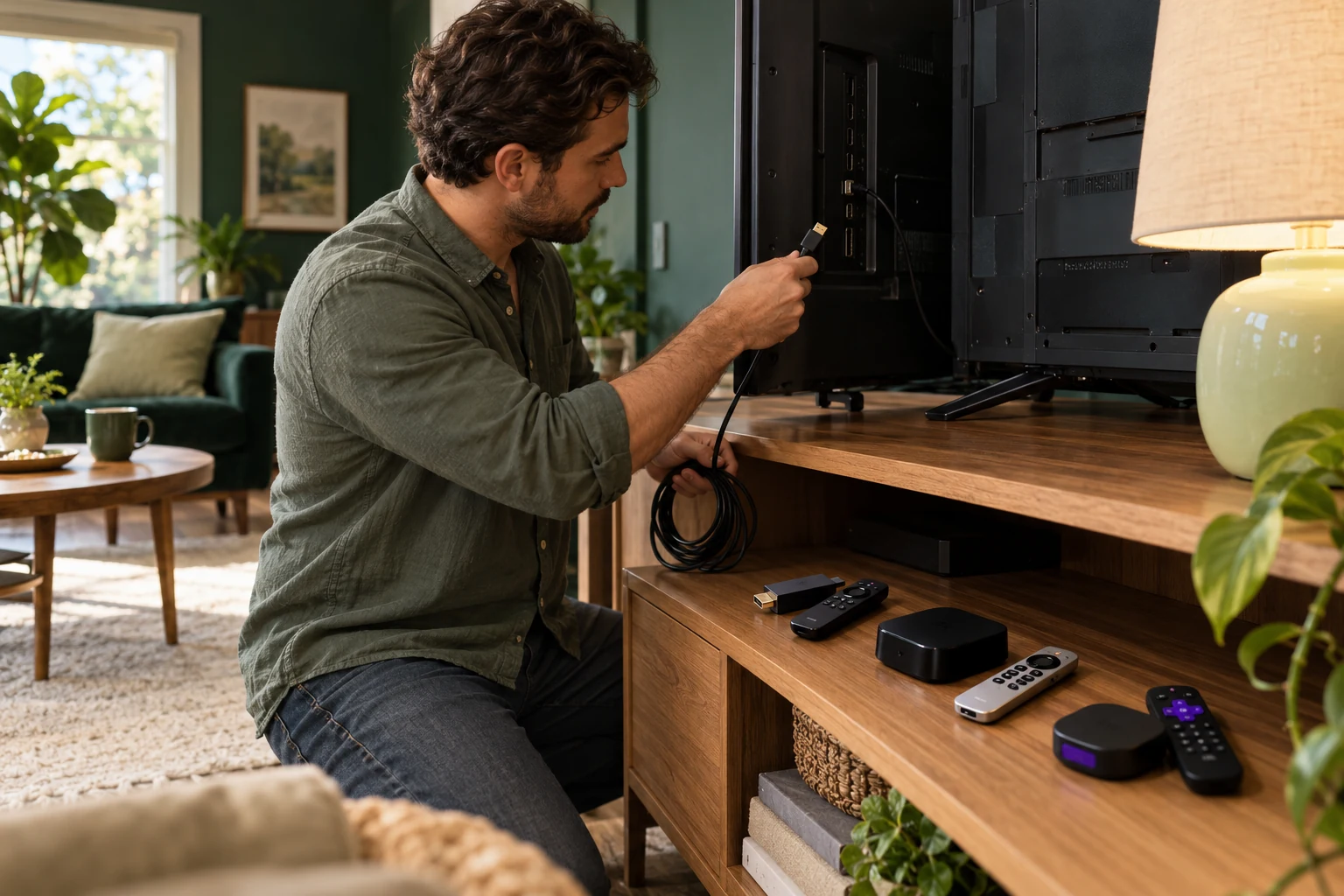
Keep any player purchase or recurring charge separate from the service plan. If the native app does not fit, ask which external device is suitable before buying hardware.
If two televisions in the house differ, make a separate row for each model and player. Test the same everyday tasks on both: opening the guide, reading it at the usual distance and returning from playback. You may choose different arrangements for different rooms. A confirmed app on the main television should be recorded as a result for that model, rather than evidence that the spare-room television will offer the same app.
Test from the sofa
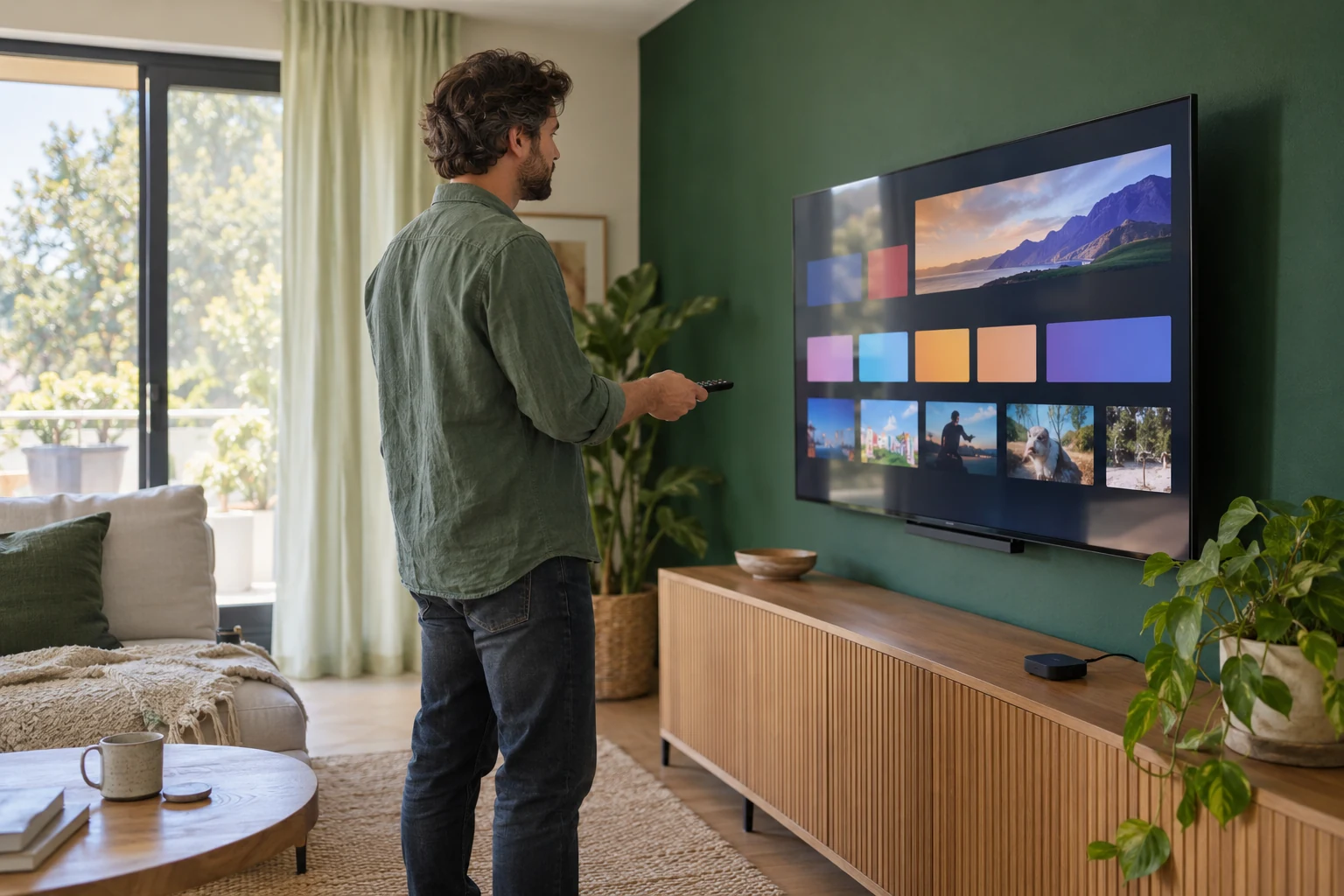
Use the current 24-hour trial on the actual television. It needs no card; human preparation takes up to four hours. Check guide text, favourites, remote buttons, sound and a few confirmed streams at your normal viewing time. Ask another household member to navigate too.
Write down the device, player and any exact error before contacting Help. A successful installation is the beginning of the check; comfortable everyday viewing is the decision you are trying to make.